Gradient map. Documented in Photoshop CS6 in 2012; digital precursors older.
Typeface · Unbounded
Gradient mapping: modern digital image editor demonstration.Digital effect demonstration.View source ↗
Prompt
Apply a Gradient Map effect that remaps image brightness through deep violet shadows, magenta lower midtones, orange upper midtones, and pale yellow highlights. Make color follow tonal structure rather than object boundaries, maintaining smooth transitions, readable contrast, and original surface textures. Keep the original subject and composition.
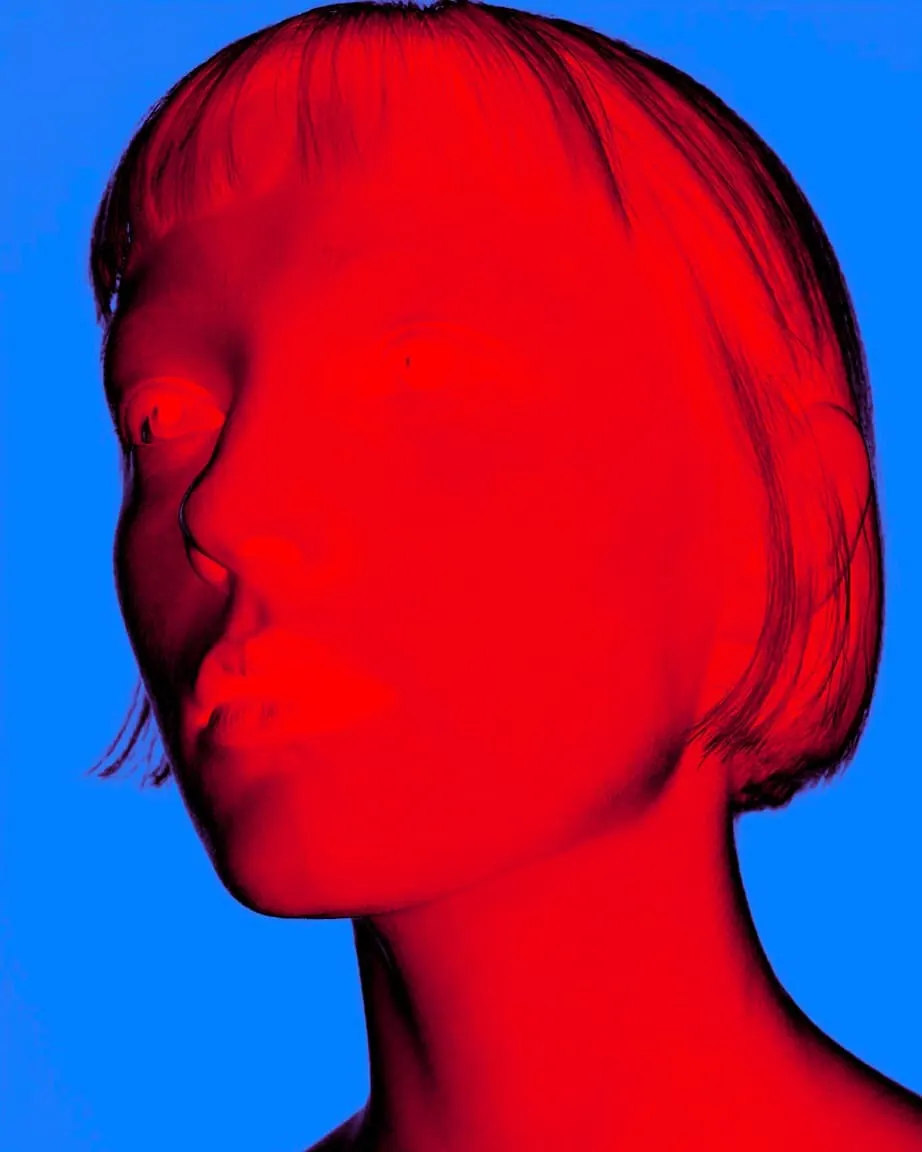
Gradient mapping treats brightness as an address within acolor gradient. Dark areas of the image are assigned colors from the beginning, light areas from the end; additional color stops create the intermediate tones. The method is established in the official Photoshop CS6 documentation and is categorized here within the documented CS6 tool set of 2012, without claiming an unconfirmed year of invention. Unlike ageometric gradient overlay, the same brightness value receives the same assignment everywhere. Therefore, two widely separated areas can be assigned the same color. In this exercise, move asingle color stop and observe how suddenly different facial features or landscape areas stand out. Tonal order and color order can be deliberately separated in this way.
Distinction
Gradient map follows brightness; agradient overlaid on top follows its spatial position.
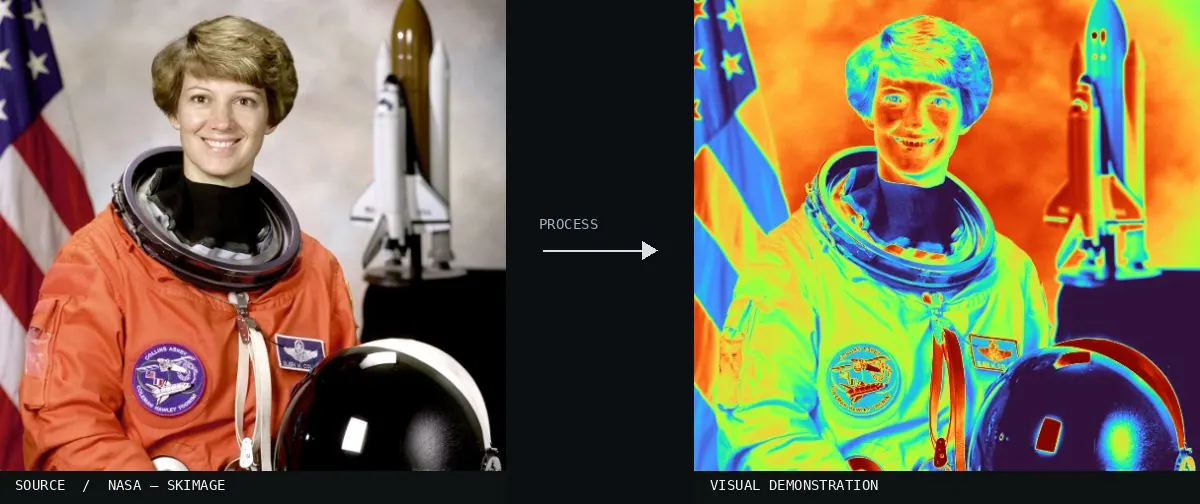
Aftermath
Duotone is the simple two-color relationship. With further stops, complex false colors, banding, or deliberately unnatural tonal jumps result.
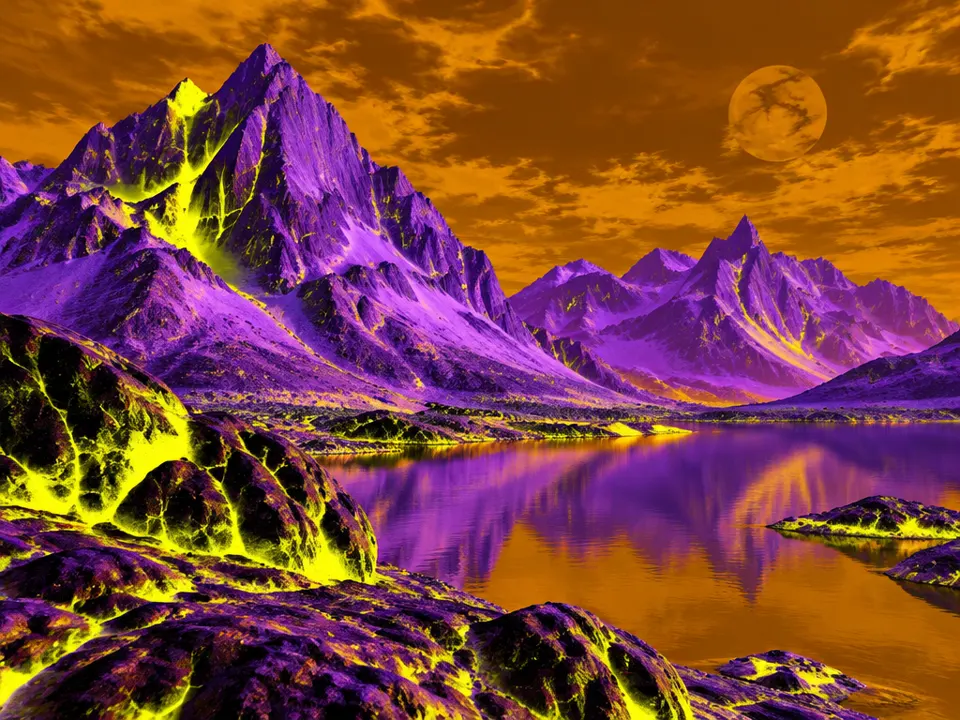
Further examples · 12 images
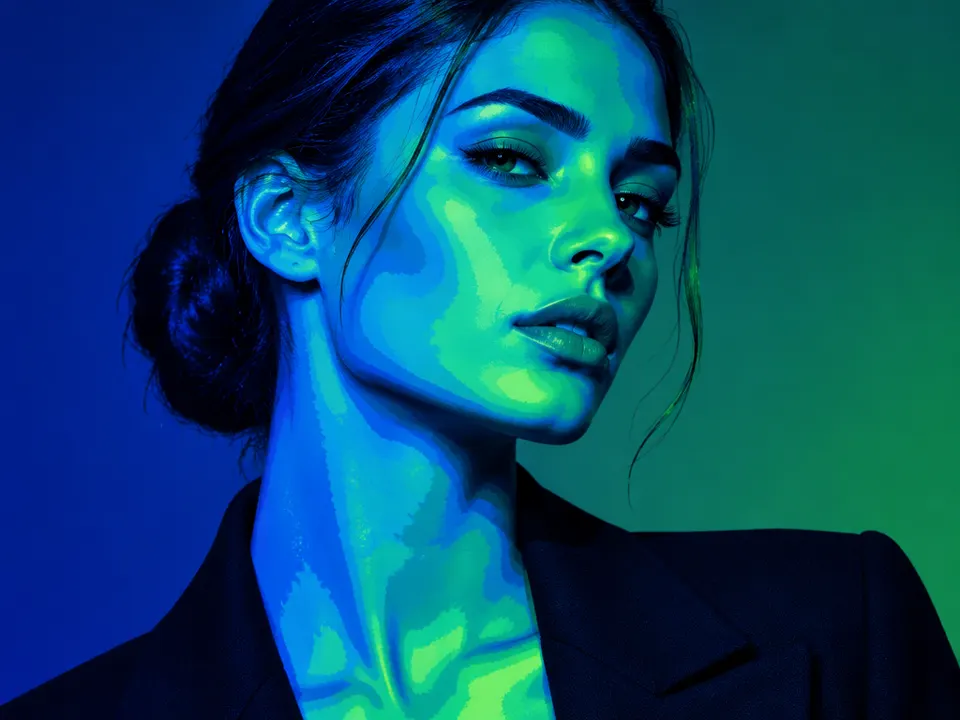
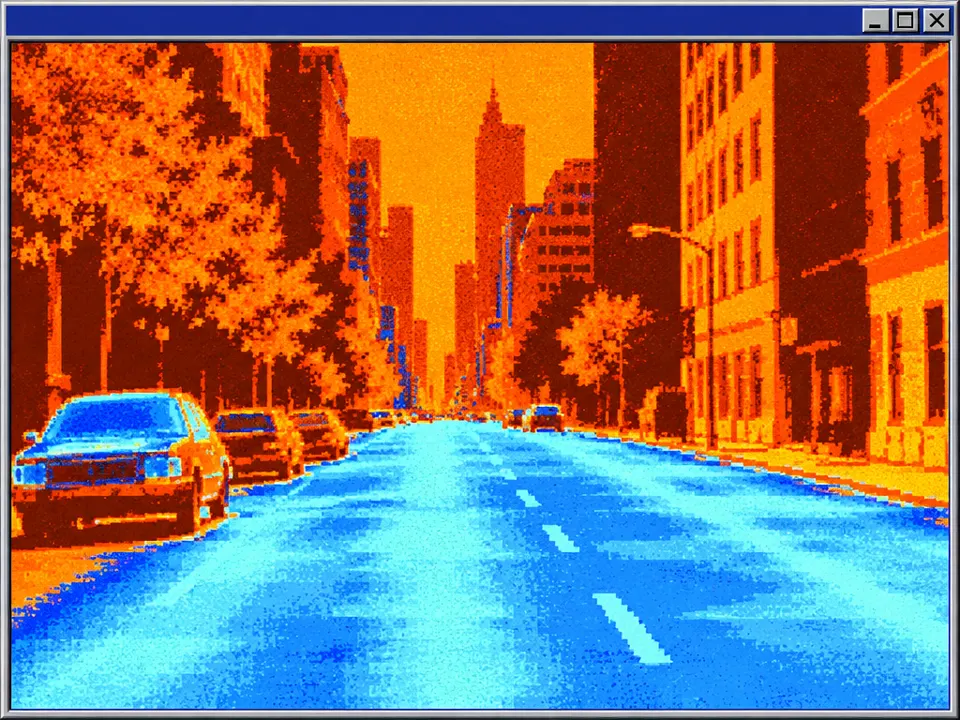
02Gradient Map, applied to “Naser al-Din Shah Qajar, close up, with slight smile by Nadar”A portrait of Naser al-Din Shah Qajar has yellow light values and red dark values. The right side shifts darker tones into deep red, showing how a single color stop adjustment redefines value ranges.Nadar / Adam Cuerden (photo); processed for the Atlas · Public domain · Wikimedia Commons03Gradient Map, applied to “Maybe”A man sits in a street scene where brightness levels map to a pink-and-yellow gradient. The right side illustrates a more aggressive compression of midtones into the darker red spectrum.Martin Hricko (photo); processed for the Atlas · CC BY 3.0 · Wikimedia Commons04Gradient Map, applied to “Ascensor del Monte de San Pedro, La Coruña, España, 2015-09-25, DD 99”The San Pedro funicular tracks demonstrate tonal mapping across a geometric perspective. Moving the middle stop on the right side shifts the rocky hillsides from pink to a darker magenta.Diego Delso (photo); processed for the Atlas · CC BY-SA 4.0 · Wikimedia Commons05Gradient Map, applied to “A girl set fire to cook breakfast by using a coal-filled clay pot; July 2014”A girl cooking with a clay pot shows smoke and highlights rendered in pale yellow. The right half focuses the color map on darker tones, turning the surrounding shadows deeper red.Gumilang Aryo Sahadewo (photo); processed for the Atlas · CC BY 2.0 · Wikimedia Commons06Gradient Map, applied to “Piazzetta San Marco Venice BLS”Piazzetta San Marco appears with architectural details mapped to specific hues. The right side shows how shifting the gradient stop expands the red range across the sky and pavement.Benh LIEU SONG (photo); processed for the Atlas · Public domain · Wikimedia Commons07Gradient Map, applied to “Panixersee (Lag da Pigniu) boven Andiast. 26-09-2025. (d.j.b.) 05”A waterfall over rocks uses a dual-tone map to distinguish flowing water from stone. The right half shows the darker rocky textures absorbing more of the red stop than the left.Dominicus Johannes Bergsma. (photo); processed for the Atlas · CC BY-SA 4.0 · Wikimedia Commons08Gradient Map — machine versionReal-world algorithm demonstration, applied to a NASA portrait.Atlas of Visual Effects09False Color Isophote of a Solar EruptionSolar data is visualized using a discrete color ramp. Specific luminance levels of the eruption are assigned unique colors like blue, yellow, and red to enhance structural visibility.NASA · Public domain · Wikimedia Commons10AI illustration: A landscape uses a purple-to-yellow gradientA landscape uses a purple-to-yellow gradient. Luminance values in the sky and highlights are remapped to dark purple and shadows to bright yellow, creating a photographic negative effect.Illustration generated for the Atlas (AI)11AI illustration: A portrait features a blue-to-green color mapA portrait features a blue-to-green color map. Darker shadows are remapped to deep blue while the highlights on the skin are remapped to bright green.Illustration generated for the Atlas (AI)12AI illustration: A street scene is processed with a blue-to-orange gradientA street scene is processed with a blue-to-orange gradient. The darkest image areas appear cyan while the brightest areas are mapped to dark orange tones.Illustration generated for the Atlas (AI)
Question
Which area turns red when red is assigned exactly to the middle gray value?
Show possible answer +Hide answer −
All pixels with this gray value, regardless of their position in the image.

.jpg)


_boven_Andiast._26-09-2025._(d.j.b.)_05.jpg)